


From memory card to finished photo. One app, on your own computer.
Import, cull, search, edit and lay out on a page — in a single window — then mirror
the keepers to your Immich server. Search your library by
describing what you remember, browse it on a map and a timeline, shoot RAW, edit
non-destructively, print what you made.
No account. No cloud. No Docker. No setup.

⬇ Download · Why Rollfilm · Screenshots · Features · Contributing · rollfilm.org
- Download the installer for macOS, Windows or Linux from the Releases page.
- Start it. There is nothing to configure. On first launch Rollfilm fetches the search model once; after that it works fully offline.
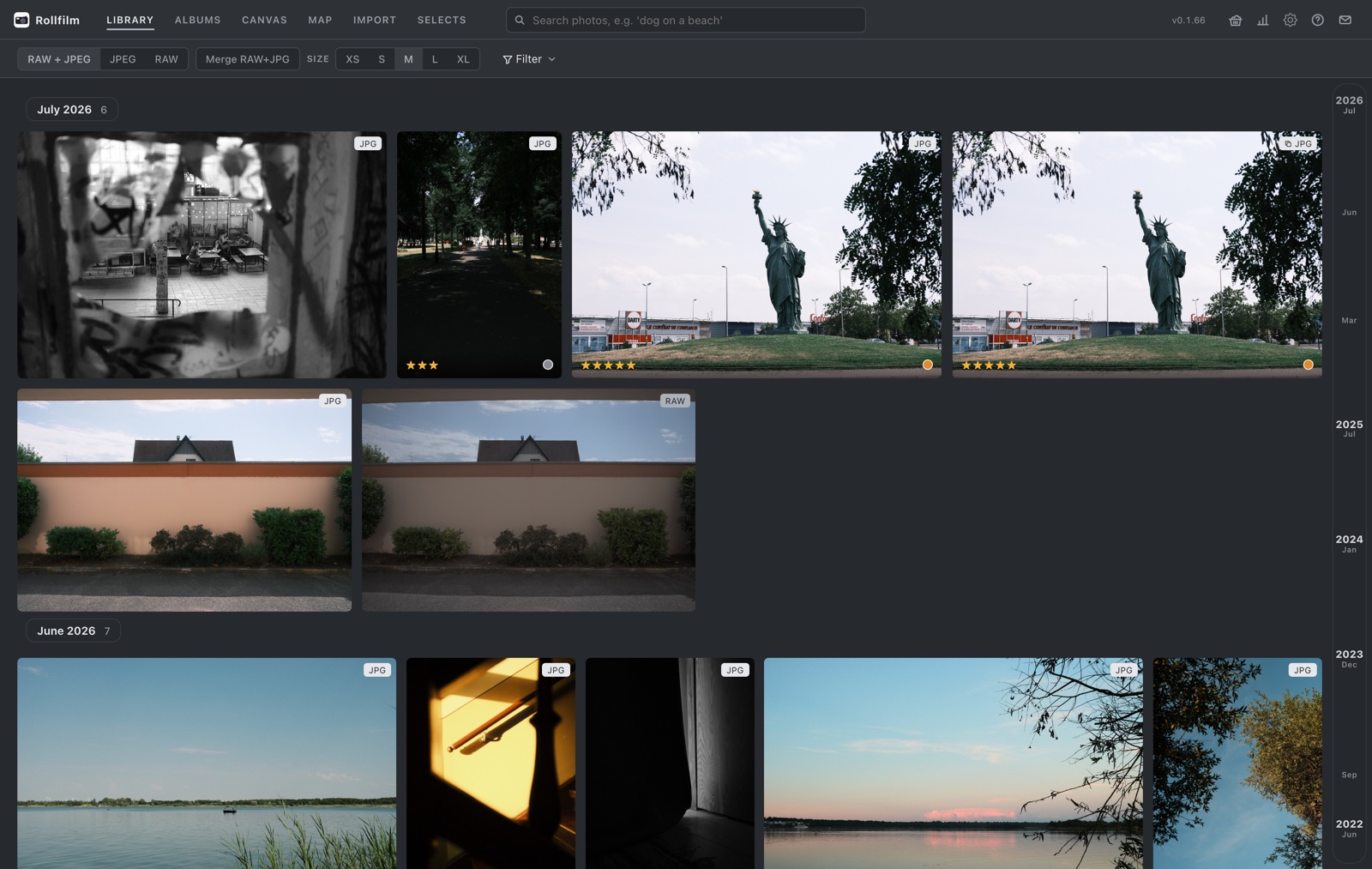
- Plug in a card or point it at a folder. Cull on the import light table, then type "sunset at the beach" into search and watch it find the shot.
Your photos stay on your own machine. Rollfilm copies them into a managed library, makes them searchable with natural language, and can optionally mirror your library to an existing Immich server.
Project status: work in progress. An early but already very usable release. The core — import pipeline, library organization, semantic search, and especially the Immich integration — works well and is used daily. The built-in photo editor is experimental and should be seen as a fun extra rather than a finished feature (see Photo editor).
- Search by describing, not by tagging. CLIP embeddings live in your local SQLite database. "Dog in the snow", "red bicycle against a wall" — no tags, no cloud API, no upload.
- An import you actually look forward to. Photos are staged and shown on a light table while they copy. Compare, pick, reject and rate while the rest is still coming off the card.
- An import you can put down. A session stays open until you end it: cull half a card today, pull it, and pick the same session up tomorrow — it recognises the card when it comes back and copies only what is still missing.
- A page, not just a grid. Put photos on a canvas — a photo book page, a poster, a contact sheet — move and crop them by hand, add captions, edit a photo right there, and export a lossless PDF for the print shop.
- Immich as a destination, not a replacement. Keep a fast local desktop library and let Rollfilm mirror it to your Immich server: manual, selective or everything. Albums, deletions and RAW+JPEG pairs follow.
- Your originals are never touched. Edits, stars, tags and albums live in the database beside the files. Rename or move a photo in Finder and it is matched back by content, not by name.
- One window for the whole path. Timeline, map, gear filters, statistics, a non-destructive editor with masks — without switching apps.
- Nothing to run, nothing to host. A native desktop app. No account, no server, no Docker, no subscription.
| Rollfilm is a good fit if you… | Look elsewhere if you… |
|---|---|
| shoot RAW+JPEG and want to cull straight off the card | need multiple users, a web UI or mobile access |
| want natural-language search that never leaves your machine | want a finished, Lightroom-class editor today |
| run Immich and want a local library feeding it | need a code-signed, commercially supported app |
| like keeping full control over your files on disk | are looking for a cloud service |
More on rollfilm.org.
 Semantic search — describe what you remember |
 Map view — every geotagged photo |
 Import wizard — stage, compare, pick |
 Immich sync — your library, mirrored |
 Editor — non-destructive, masks, film sims |
 Compare — split by a draggable line, or side by side |
 Statistics — the gear you actually use |
 Skins — a light one, a dark one, or follow the system |
 Canvas — lay photos out on a page, print or export it |
 Albums — countries, years and months, plus your own |
 Canvas edit — edit a photo right on the page, the original stays untouched |
 Import sessions — an import stays open until you end it, pull the card and come back later |
| Highlights | |
|---|---|
| Import | Staged import wizard with a light table, sessions that stay open until you end them, RAW+JPEG pairing, byte-identical duplicate detection, EXIF and lens data, reverse geocoding |
| Organize | Albums, smart albums, tags with bulk tagging, star ratings, color labels, selects/picks, per-photo descriptions, trash with retention, a right-click menu on every photo, chips that say which albums and canvases a photo is in |
| Search | Local semantic search, image-to-image similarity, gear filters that cross-filter each other, map, exact-scrolling timeline, statistics |
| Immich | Three sync modes, background reconciliation every 60 s, album mirroring, durable deletion queue, optional RAW upload |
| Edit (experimental) | Non-destructive, backend-rendered, masks with local AI subject selection, tone curves on the histogram, auto develop learned from your own edits, virtual copies |
| Canvas | Pages or one free sheet, A4/A3/Letter/square or any size in mm, drag, crop-in-frame, rotate, snap, captions, the editor docked beside the page, print view and lossless PDF export |
| Safety | Originals never modified, renames survive Finder, backup and restore as one zip, external folders mounted read-only |
Library & import — full list
- Staged import wizard — photos are copied at the speed of the media, reviewed in a virtualized grid that stays responsive at thousands of files, and analyzed in the background while you're already culling
- Sessions you can come back to — Continue later keeps your ticks, stars, labels and the files already copied; Open import sessions on the Import page lists what is still open and Continue copies only what isn't copied yet, including photos shot onto the card since. Photos already added in an earlier round stay visible, marked as in the library and blocked from coming in twice
- The card, not its path — a session remembers the card itself, so it is recognised even when the computer mounts it under another name, and a different card under the same name is not mistaken for it. An unplugged card shows as Not connected until it returns
- One session, several sources — Add folder… / Add photos… in the review collect from more than one card or folder into the same session, each tracked and continued on its own
- RAW support (via rawpy) with automatic RAW+JPEG pairing
- EXIF extraction (ExifTool) — capture date, camera, lens, exposure data — and reverse geocoding of GPS coordinates to country/place
- Duplicate detection during import — byte-identical files only, so a burst or a bracketed set comes in complete
- Import a second library — take a small drive travelling, cull the trip on it, and fold it into your main library at home with the stars, colour labels, edits, tags and albums you gave the photos on the road
- Albums, smart albums, tags (with bulk tagging), star ratings, color labels, and a selects/picks workflow
- Select without a mode — Cmd/Ctrl-click or Shift-click the first photo and checkboxes appear on every tile; Cmd/Ctrl+A takes everything, Esc clears, E opens a single picked photo in the editor. A plain click still opens the photo
- Right-click any photo — export, save a copy, or show the file in Finder / Explorer; on a selected photo the action applies to the whole selection
- Where a photo lives — album and canvas chips beside each photo and on the grid's hover card, each a link into that album or canvas, with an × to take the photo out
- Rename photos from the app — the file on disk is renamed with them, the RAW/JPEG partner follows to the same name, and the photo keeps its stars, tags, albums, edits and cached previews
- Free-text descriptions per photo, stored in the database like every other edit
- Renames survive Finder — a photo you rename or move outside the app is matched back by its content, not its name, so it keeps everything you gave it instead of being treated as deleted
- Trash with configurable retention and automatic background purge — a deletion keeps the photo's stars, tags, albums and edits, and Restore brings it all back
- Backup & restore — one zip with every photo plus all ratings, colors, albums, tags and edits, and a one-click "sync database to library" repair
Search & browsing — full list
- Semantic search — describe what you're looking for in natural language ("sunset at the beach", "dog in the snow"). Powered by CLIP embeddings stored in SQLite via
sqlite-vec, fully local, no cloud API - Image-to-image similarity search
- Gear-aware filters — narrow the library by camera, lens or a focal-length range slider; the filter options cross-filter each other (pick a camera and the lens list shrinks to what that camera actually shot), and the filter bar can be pinned open so it stays put while you cull
- Smart albums with the same filter bar as the library — JPEG/RAW, rating, colour label, tags, date range
- Map view (Leaflet) of all geotagged photos
- A timeline that stays out of the way at any size — the whole library is laid out up front, so the scrollbar is exact from the first frame and the date scrubber on the right lands anywhere in it instantly; only the tiles near the viewport are ever mounted
- Details without leaving the grid — hover a tile for an "i" that opens camera, lens, exposure, tags and albums beside it
- Statistics — photos per year, plus which camera bodies, lenses and focal-length ranges you actually shoot, how your ratings fall, and what the library is made of
- Look & feel — seven light/dark skin pairs (Stone, Slate, Ink, Orange, Sand, Sage, Blue), a light one and a dark one chosen separately with a Light / Dark / Auto switch that can follow the system; rounded or square corners; the interface typeface picked from what your system already has
Immich integration ⭐ — full list
One of the highlights of the project: keep your library mirrored to an existing Immich server without giving up local-first management.
- Configure server URL + API key directly in the app (Settings → Immich) — nothing goes into config files
- Three sync modes:
manual— per-import checkbox and on-demand "Add to Immich" buttonsselective— only photos and albums you flag for syncfull— every photo and album is mirrored automatically
- Background reconciliation loop — runs at startup and every 60 seconds: uploads missing assets, backfills asset IDs (checksum-based, so Immich deduplicates correctly), mirrors app albums to Immich albums, and propagates deletions through a durable pending-deletion queue
- Per-image exponential backoff on failures; event-driven uploads for instant sync after import
- JPEGs by default, RAWs on request — an off-by-default option also uploads RAW files; a RAW follows its paired JPEG, so a flagged or mirrored shot arrives as JPEG + RAW (ready for stacking in Immich)
- Immich mirrors only your visible library — the local library always remains the recoverable source of truth
Canvas — full list
A free design surface: place photos where you want them instead of where the grid puts them, then print or export the result.
- Make one from a selection — pick photos in the Library, an album or Selects and choose Add to… → canvas; in merged view the RAW partner comes along. A canvas has its own photos, kept on a filmstrip along the bottom until you put them on the paper
- Two kinds of paper — Pages is a run of sheets of one size, like a photo book, with a rail to add, copy and reorder pages; Free canvas is one endless sheet with an optional page guide so you can still design for print
- Any paper size — A4, A3, US Letter, two squares, or a width and height in millimetres; separate side and top/bottom margins; a measuring grid that is never printed
- Laying out — drag from the filmstrip, resize with locked or free proportions, rotate (Shift for 15° steps), crop in frame to move and zoom the picture inside its frame, a coloured border per photo, copy and paste settings between items, stack with bring-to-front / send-to-back, snapping to other items, page edges, centre lines and margins
- Captions — text boxes with any font installed on the computer, weight, italic, size in millimetres, colour and alignment
- Edit a photo on the page — Edit photo docks the full editor beside the paper and develops a virtual copy, so each canvas can have its own version of a picture and the library original is never changed; masks are drawn on the frame itself
- Print view and export — the paper alone, page by page, in a focus mode that takes the whole screen; export is a PDF at the exact page size with every photo lossless at full resolution and text as real text, or a single self-contained HTML file. Never a re-compressed JPEG
- It saves itself — no Save button and no "discard changes?" question; every change is written a moment later, and undo/redo covers every step
- Focus mode — F hides every bar; the paper stays editable and gets the whole window
External sources
- Index photo collections in place (e.g. a NAS) — read-only, without copying anything into the managed library
- Browse any mounted drive directly from the app
Photo editor (experimental) — full list
A non-destructive editor is included, but consider it a gimmick for now — it's fun to play with, not a Lightroom replacement.
- All rendering happens in the app's backend, so the live preview is pixel-identical to the exported result
- Built to keep up — while a slider is being dragged, only the pixels your screen can actually show are rendered (zoomed in, only the visible tile), so editing stays fluid even on 40MP RAWs
- Edits are stored as values in the database; originals are never touched
- It saves itself — no Save button: edits are written a moment after a slider comes to rest and again when you close. Small dots on sliders and sections show where the edits are
- Focus mode — F hides the app's bars, P the panel, so the photo gets the whole window
- Exposure/contrast/highlights/shadows, white balance, HSL color mixer, color grading wheels, crop/rotate/perspective, and effects like grain, vignette, clarity, film-style diffusion and a white matte frame
- Tone curves drawn over the photo's own histogram, with a targeted picker: point at something in the image and drag to move the curve where that tone actually lives
- Masks — radial, linear, brush, luminance and color, plus AI subject selection (sky, water, greenery, people, buildings, ground) run locally with SegFormer. Point at a mask in the list and it marks what it covers
- Compare against the original — split by a divider you drag across the photo, or the two side by side. On a RAW the original half is shown with the library's auto-exposure, so the comparison isn't just "the edit is brighter"
- Physical and virtual copies — Save copy bakes an edit into a new file in the library; a virtual copy is a second, independently editable version of the same file that costs no disk space
- Auto develop — an optional "Auto" button that suggests develop settings learned from your own edits: a local CLIP k-nearest-neighbor recommender finds the photos you've already edited that look most like the one you're working on and blends their settings. No training step, no cloud — every edit you save immediately makes the next suggestion better. Works on a single photo or a whole selection at once
Prebuilt installers for macOS, Windows, and Linux are on the Releases page and on rollfilm.org.
| Platform | Get it | First launch |
|---|---|---|
| macOS (Apple Silicon) | Rollfilm-<version>-arm64.dmg |
One-time Gatekeeper step, see below |
| Windows | Rollfilm-Setup-<version>.exe |
SmartScreen: More info → Run anyway |
| Linux | Rollfilm-<version>.AppImage |
chmod +x and run |
On first start the app downloads the CLIP model for semantic search; after that everything works offline.
The installers are not code-signed. An Apple Developer membership is 99 € a year and a Windows certificate costs on top of that; Rollfilm is an unpaid hobby project. Nothing is wrong with the download — both systems will say so in their own way, and the steps below are how you get past it. Every installer is published with a
.sha256file next to it if you want to verify what you downloaded.
The quickest route — download in the terminal, so macOS never tags the file as quarantined and no dialog ever appears:
curl -L -o ~/Downloads/Rollfilm.dmg "$(curl -fsSL \
  https://api.github.com/repos/pasqualkreher/Rollfilm/releases/latest \
  | grep -o 'https://[^"]*arm64\.dmg' | head -n1)"
open ~/Downloads/Rollfilm.dmg
Drag Rollfilm into /Applications and start it.
Already downloaded in the browser? Two other routes, and what is actually going on
What's going on: when a browser downloads a file, it tags it with an attribute called com.apple.quarantine. On a tagged app that Apple hasn't notarized, Gatekeeper refuses the first launch. So there are three ways in — one that avoids the tag (the curl route above), one that removes it, one that leaves it and approves the app instead. Any of them works; they differ only in whether you want to touch a terminal.
B · Strip the tag off. Drag Rollfilm into /Applications, then run once:
xattr -dr com.apple.quarantine "/Applications/Rollfilm.app"This deletes the attribute the browser added (-d) from the whole app bundle (-r). Afterwards the app is in exactly the state the curl route would have produced. You do not have to try launching it first.
C · No terminal at all — approve the app in System Settings. Drag Rollfilm into /Applications, then:
- Open Rollfilm. macOS refuses and shows a warning — close it.
- Go to System Settings → Privacy & Security and scroll to the bottom.
- Next to "Rollfilm was blocked to protect your Mac" click Open Anyway, confirm, and enter your admin password.
- From then on Rollfilm starts by double-click like any other app.
Step 1 is not optional here — the entry in System Settings only appears after a blocked launch attempt. On macOS 14 and older there was a shortcut (right-click → Open); Apple removed it in macOS 15 Sequoia.
The difference: the curl route and B end up identical — no quarantine attribute, so Gatekeeper has nothing to complain about. C leaves the attribute in place and instead records a one-time exception for this specific app. All three are permanent for the copy you installed; a future version you download in a browser goes through the same thing again.
Run Rollfilm-Setup-<version>.exe. SmartScreen will warn about an unknown publisher — choose More info → Run anyway.
Download Rollfilm-<version>.AppImage, make it executable (chmod +x Rollfilm-*.AppImage) and run it.
On Windows and Linux the app updates itself: it checks the Releases page, downloads the new version in the background and applies it on the next quit. On macOS it can't — swapping an app bundle in place requires a signed build — so it only tells you a new version exists and opens the release page. Updating there means repeating the install: same two commands, drag over the old app.
Rollfilm is a one-person hobby project. There is no company behind it, no team, no roadmap meeting — just me, my own photo library as the test case, and whatever time is left over in the evening.
It is also fully vibe coded: essentially every line is written by an AI assistant (Claude), with me directing, reviewing, testing and deciding what ships. Every commit carries that in its trailer. I'm saying it plainly rather than burying it, because you deserve to know what you are installing and because it visibly shapes the code — you'll find long comments explaining why a three-line function exists, which is how the reasoning survives between sessions.
What that means in practice:
- It's tested where it counts. 450+ backend tests cover the paths that could lose your photos or your edits — import, trash, pairing, library sync. Your originals are never modified; edits live in the database beside them.
- It also means one person's blind spots. Rollfilm is used daily on one library, one camera bag, one operating system more than the others. Bug reports from a different setup are genuinely the most useful thing you can send.
- Keep a backup. That is true of any photo manager, and I'd rather say it out loud than have you assume otherwise.
If that trade sounds fine to you, welcome. If not, that's a reasonable call too.
| Layer | Tech |
|---|---|
| Backend | Python 3.11+, FastAPI, SQLAlchemy 2.0, Alembic, SQLite + sqlite-vec |
| ML / imaging | OpenCLIP (ViT-B-32), Pillow, rawpy, OpenCV, ImageHash, ExifTool |
| Frontend | React 18, TypeScript, Vite, TanStack Query, Leaflet |
| Desktop | Electron 33 + electron-builder, backend bundled with PyInstaller |
Everything runs locally — the only network access is the initial CLIP model download and your own Immich server (if configured).
Rollfilm is a native desktop app (Electron). You need Node.js 18+, a Python 3.11+ that can load SQLite extensions (on macOS use Homebrew Python — the system build has extension loading compiled out and sqlite-vec will fail), and ExifTool on your PATH (the packaged app ships its own; development does not).
# Development (Vite dev server + Electron)
cd electron
npm install
npm run dev

# Build installers (dmg / nsis / AppImage)
npm run dist
There is also a GitHub Actions workflow (.github/workflows/build-desktop.yml) that builds macOS, Windows, and Linux installers, and a one-command local build (node build-desktop.js).
cd backend
python -m venv .venv && source .venv/bin/activate
pip install -e ".[dev]"
python run_server.py   # runs Alembic migrations, then starts the API on localhost
pytest # 450+ tests, in-memory database, a few secondsThe desktop app configures itself (data directory, ports) and stores everything under your user data folder. The Immich server URL and API key are deliberately not environment variables: they are entered in the app under Settings → Immich integration and stored in the database. For backend development, PM_DATA_DIR overrides where the library/database live.
Architecture
Scan report · 2026-09-27
- ✓ Prohibited terms or links
- ✓ Repository eligibility
- ✓ slopscore.md paperwork
- ✓ Content policy
- ✓ Risk review
From the balcony · 1 of 3 clapped
- Princessclapped
Has releases, clear run instructions, MIT license, declared status beyond idea, and appears to be actively used despite work-in-progress label.
Schnitzel and Cap'm Slop read it and passed. Their reasons are on the balcony, with every other verdict.
Critics are accounts on this site with no GitHub account behind them. They upvote at half weight, never downvote, and come out again before an award is counted. Who they are.
0 comments
log in to comment.